


Have you ever wanted to edit photos or create digital art but found Adobe Photoshop to be too complex or expensive? You are not alone. Many beginners and hobbyists are looking for powerful tools that don't come with a steep learning curve or a high price tag.
The good news is that there are many excellent free alternatives available today. These tools offer many of Photoshop's key features, such as layers and filters, in a more accessible package.
This article will help you find the perfect software to start your creative journey without any cost. Now, let us look into the top 5 best free alternatives to Adobe Photoshop for beginners.
Top Free Apps Like Photoshop for Simple Editing Tasks
1. Canva
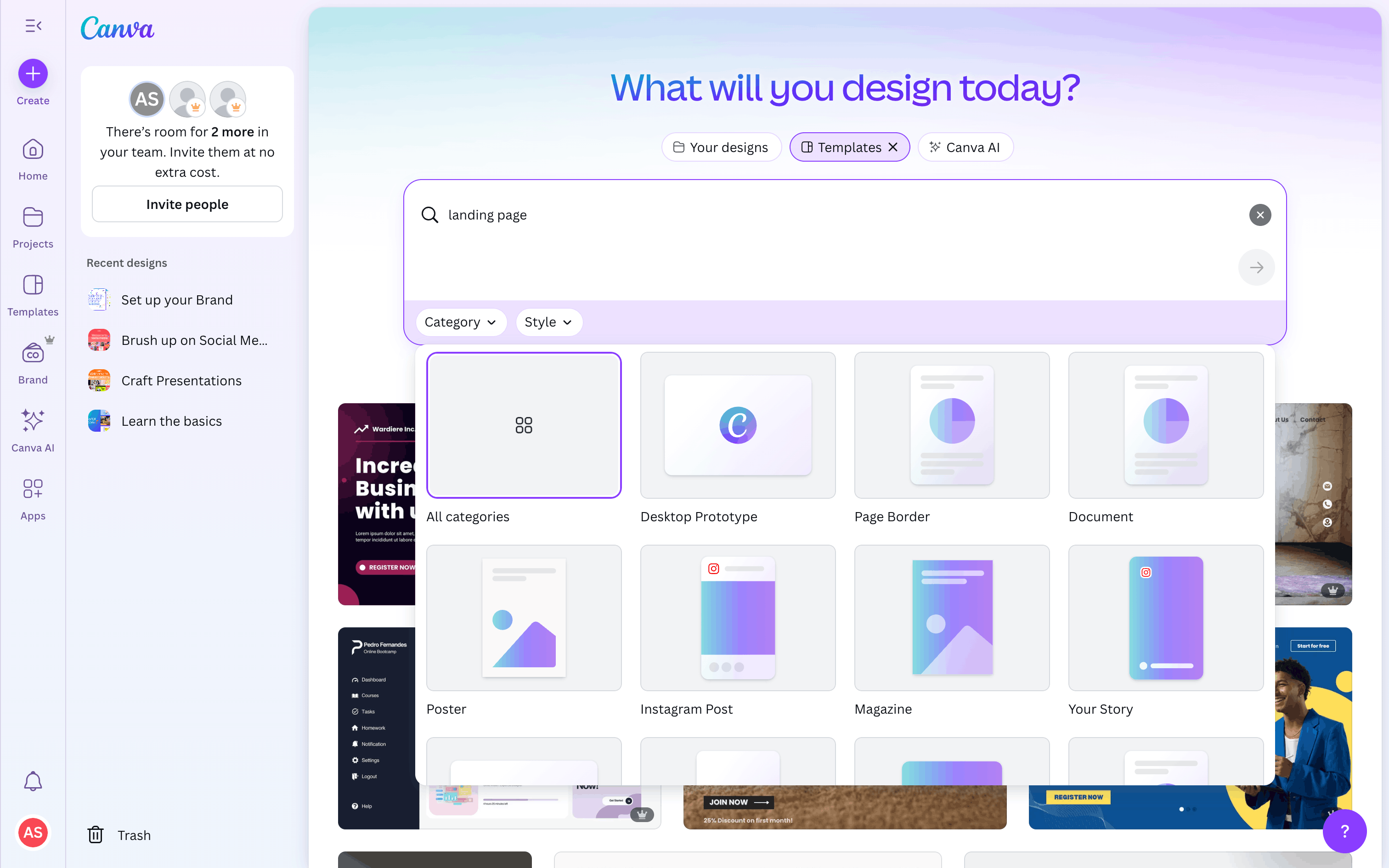
Canva is an immensely popular graphic design tool known for its simplicity and large library of templates. It is not a direct photo editor in the same way as Photoshop, but it is an excellent alternative for creating visually appealing content quickly. You can easily combine photos, text, and other elements. It is ideal for beginners, social media managers, and anyone who needs to create beautiful designs without any prior experience.
Key Features
-
Drag-and-Drop Interface: The user-friendly interface makes design simple and intuitive for everyone.
-
Vast Template Library: Access thousands of professional templates for posters, presentations, Instagram stories, and more.
-
Rich Content Library: Includes millions of free and paid stock photos, graphics, icons, and fonts.
-
Real-time Collaboration: Work on projects with a team in real-time.
Ratings
-
Google Play Store: 4.8/5
-
G2: 4.7/5
-
Capterra: 4.7/5
Pros and Cons
Pros
-
Incredibly easy to learn and use.
-
The free version offers a huge amount of value.
-
Perfect for creating social media content and marketing materials.
Cons
-
It is a design tool, not a full-fledged photo editor; it lacks advanced retouching features.
-
You may be tempted to use templates that look similar to others' designs.
-
Some of the best features, like the background remover, are only available in the paid plan.
Pricing
Canva Free: A generous free plan that includes thousands of templates, photos, and design elements. Perfect for individuals who only need basic features.
Canva Pro (for individuals):
-
Monthly Plan: $6.50/month
-
Yearly Plan: $55/year (saves you money compared to the monthly option)
-
Pro unlocks premium templates, advanced editing tools, background remover, and extra cloud storage.
Canva for Teams:
-
Requires a minimum of 3 members
-
Monthly Plan: $5 per person/month
-
Yearly Plan: $50 per person/year
-
Ideal for businesses, agencies, or teams that need collaboration features.
Custom Plan: Canva also offers a custom option tailored for larger organizations with advanced needs like brand kits, workflows, and enterprise support.
How the Fileion Team Analyzed and Picked These Tools
Canva was included for its unique position in the market as a design platform rather than a traditional editor. We picked it because its simplicity and focus on templates make it a great entry point for beginners who are intimidated by complex software but still want to create stunning visuals.
2. Photopea
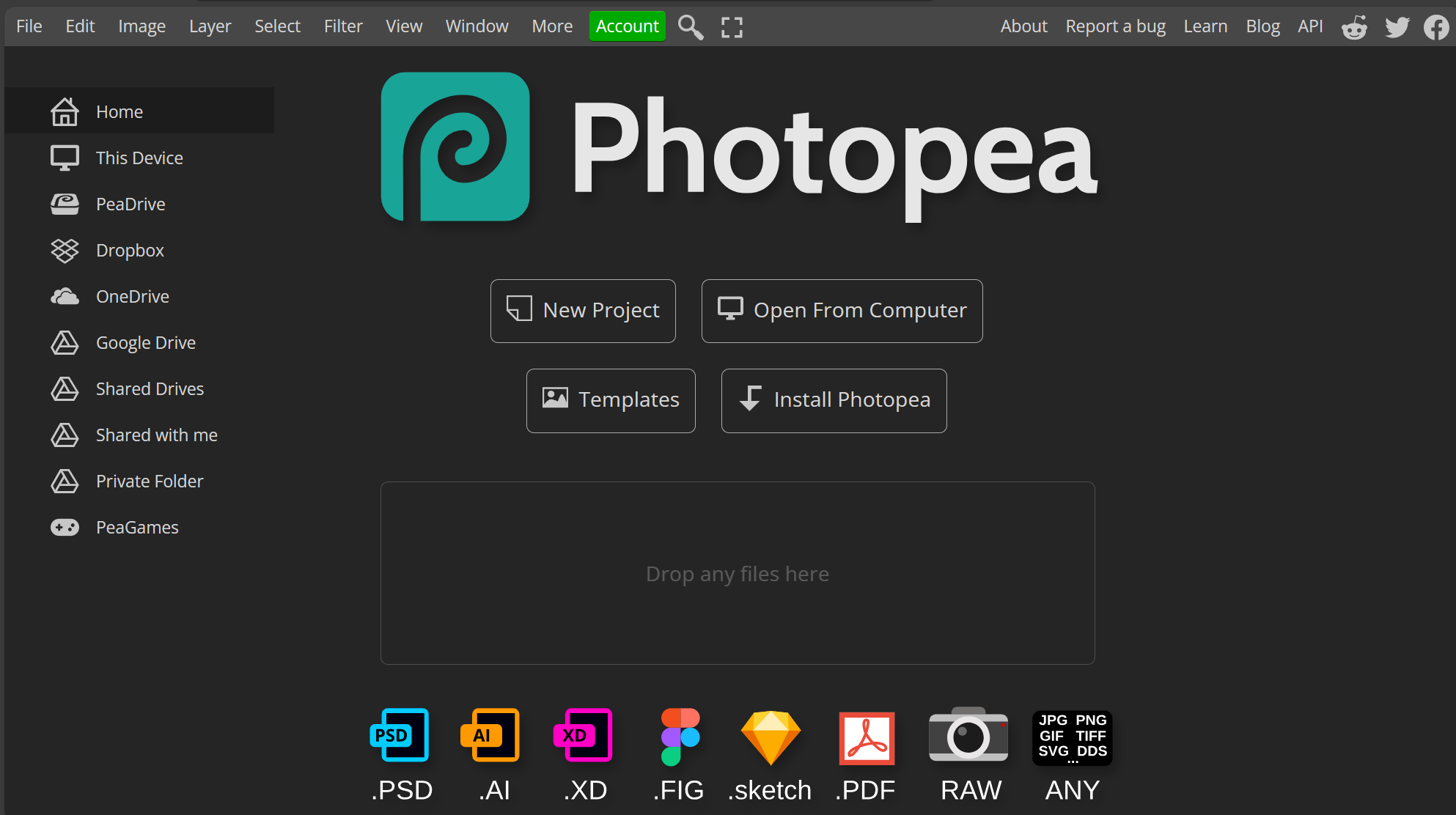
Photopea is a fantastic, browser-based image editor that closely mimics the look and feel of Adobe Photoshop. You can access it directly from your web browser without installing any software.
It is fast, easy to use, and surprisingly powerful for an online tool. It is ideal for beginners who want a familiar interface without having to download a program.
Key Features
-
Familiar User Interface: The layout and shortcuts are almost identical to Photoshop, making it easy to transition.
-
Broad File Compatibility: Supports a wide range of formats, including PSD, XCF (GIMP), and Sketch files.
-
Full Layer Support: Offers layers, layer masks, and blending modes for complex editing tasks.
-
No Installation Required: Works directly in your browser on any device with an internet connection.
Ratings
-
G2: 4.8/5
-
Capterra: 4.5/5
-
Trustpilot: 2.8/5
Pros and Cons
Pros
-
It is completely free to use with optional paid plans.
-
No download or installation is needed.
-
The interface is incredibly easy for Photoshop users to learn.
Cons
-
The free version includes ads.
-
It can be slow when working with very large or complex files.
-
Requires a stable internet connection to function.
Pricing
Photopea is available for free with ads. A premium ad-free plan is available for $5 per month, with options for teams as well.
How the Fileion Team Analyzed and Picked These Tools
Photopea was selected for its exceptional accessibility and its uncanny resemblance to Photoshop's interface. We value its ability to provide a powerful, professional-like experience directly in the browser, which is perfect for users who want to start editing immediately.
3. Krita
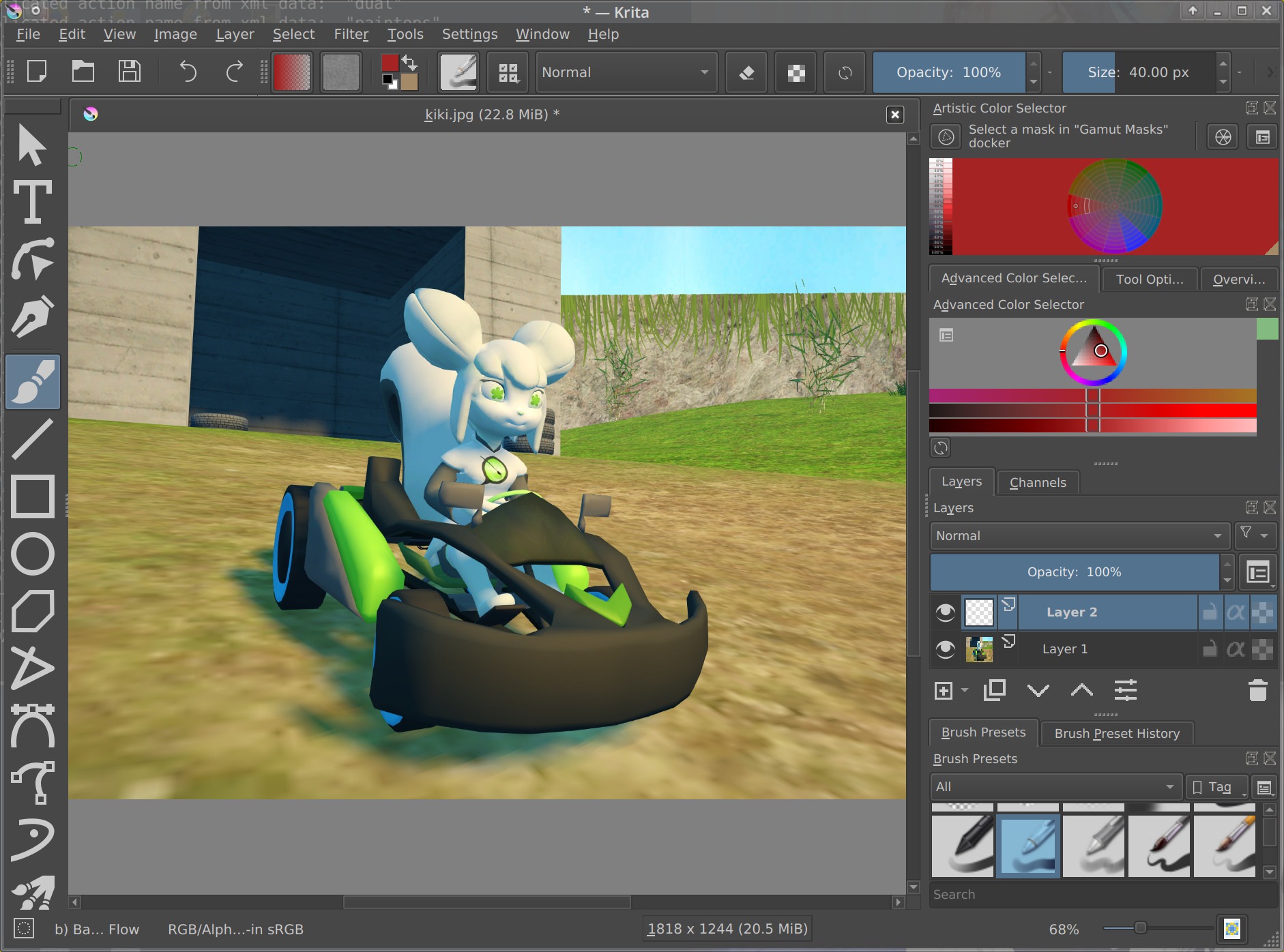
Krita is a free, open-source program that specializes in digital painting and illustration. While it has some photo editing capabilities, its core focus is on creating original artwork.
It is a favorite among artists and illustrators for its wide array of brushes and dynamic tools. It is an ideal choice for anyone interested in digital art, from drawing to creating comics.
Key Features
-
Advanced Brush Engine: Offers a huge variety of customizable brushes, and you can create your own.
-
Drawing and Painting Tools: Includes tools like stabilizers for smooth lines and an extensive color palette.
-
Animation Features: Has a built-in timeline for creating frame-by-frame animations.
-
PSD File Support: Can open and save Photoshop files, which is useful for collaborating with other artists.
Ratings
-
G2: 4.4/5
-
Trustpilot: 4.0/5
-
Capterra: 4.4/5
Pros and Cons
Pros
-
The program is designed specifically for artists, offering a very natural drawing experience.
-
Completely free and open-source with no limitations on features.
-
Excellent support for drawing tablets and pressure sensitivity.
Cons
-
Not as strong for general photo editing or retouching tasks.
-
The number of features can be overwhelming for some beginners.
-
The community and tutorials are focused more on art than photography.
Pricing
Krita is completely free and open-source. Donations are accepted to support development, but there is no cost to use the software.
How the Fileion Team Analyzed and Picked These Tools
Our selection criteria for Krita were its focus on a specific user group: digital artists. We recognized its strength in providing professional-grade art tools for free, making it a standout option for a different kind of beginner, in contrast to the general-purpose editors.
4. Pixlr
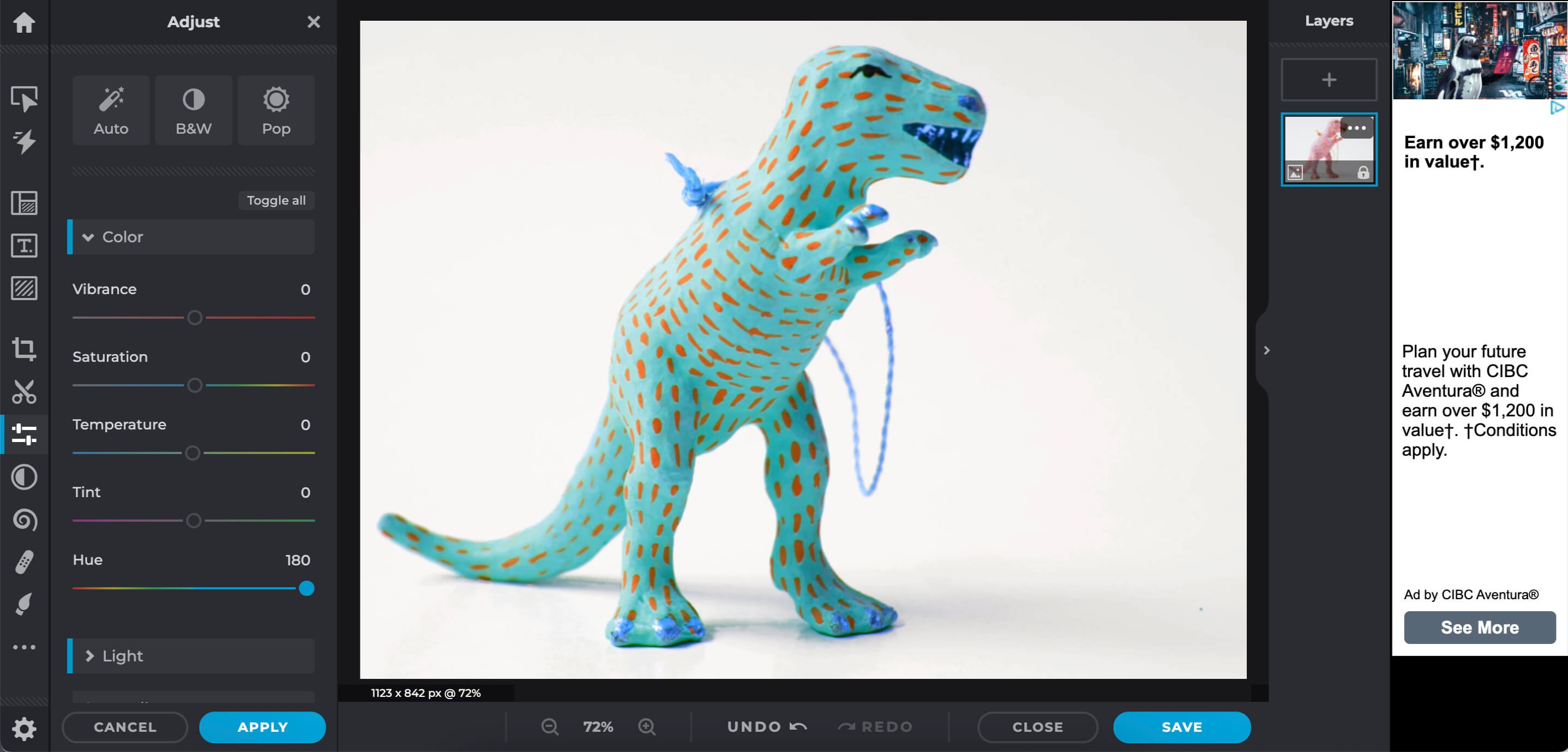
Pixlr is a suite of user-friendly online tools for photo editing and graphic design. It offers two main editors: Pixlr X for quick and simple edits and Pixlr E, which is a more advanced editor similar to Photoshop. You can start creating and editing right in your browser. It is perfect for beginners who need to make quick edits, create social media graphics, or touch up photos easily.
Key Features
-
Two Editor Options: Choose between the simple Pixlr X for fast tasks or the powerful Pixlr E for more detailed work.
-
AI-Powered Tools: Includes features like one-click background removal and object removal.
-
Extensive Template Library: Provides thousands of templates for social media, collages, and more.
-
Cloud-Based: No installation is needed; access your work from anywhere.
Ratings
-
G2: 4.4/5
-
Capterra: 4.4/5
-
Software Advice: 4.4/5
Pros and Cons
Pros
-
The free version provides many useful tools for everyday tasks.
-
Very intuitive and easy for beginners to navigate.
-
Quickly remove backgrounds and objects with AI tools.
Cons
-
The free version has limited features and includes ads.
-
The paid plans are necessary to unlock the full range of tools and assets.
-
Some advanced features may not be as robust as desktop software.
Pricing
Pixlr has a free plan with basic editing tools and limited overlays, but it shows ads.
Pixlr Premium costs $4.90/month, removes ads, and unlocks full access to Pixlr X and E, AI CutOut, plus thousands of extra overlays, stickers, and decorative texts.
For professionals, the Pixlr Creative Pack is $14.99/month, adding 10M+ stock assets, 28,000 overlays, premium support, and a legal usage guarantee.
How the Fileion Team Analyzed and Picked These Tools
Pixlr was chosen for its dual-mode approach, which caters to both absolute beginners and those who want to grow into more complex editing. We value its user-friendliness and AI-powered tools, which make common tasks simple and fast for anyone just starting out.
5. GIMP
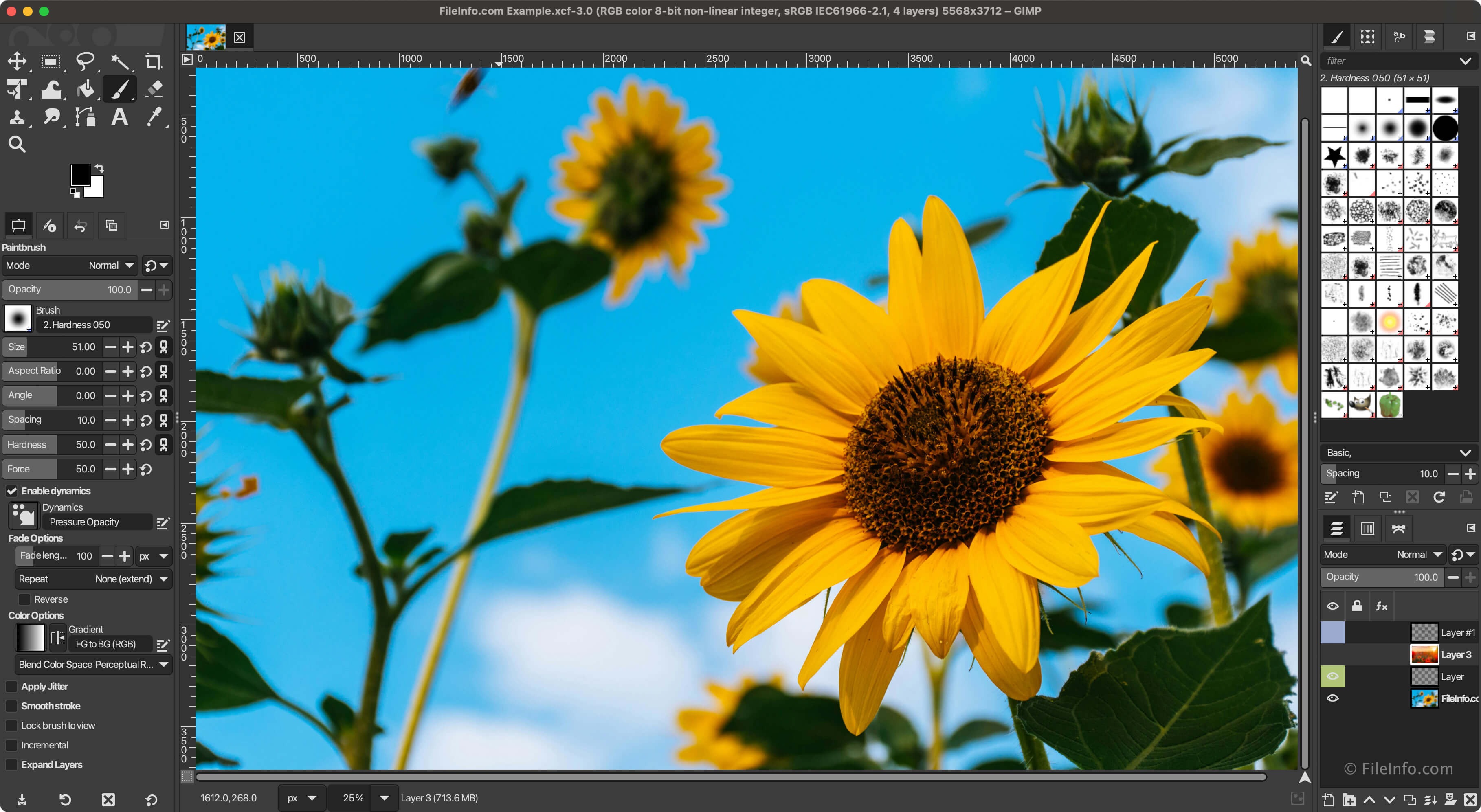
GIMP, which stands for GNU Image Manipulation Program, is a robust and open-source image editor. It is often considered the most powerful free alternative to Photoshop.
It offers a wide range of professional-grade tools for photo retouching, image composition, and graphic design. It is ideal for users who are serious about learning advanced photo editing but don't want to pay for a subscription.
Key Features
-
Layer and Masking Support: Create complex compositions with layers, channels, and layer masks.
-
Advanced Retouching Tools: Use features like cloning, healing, and perspective correction to fix photos.
-
Extensive Customization: The interface can be customized with various plugins and scripts to fit your workflow.
-
Broad File Format Support: Can open and save a wide variety of file types, including Photoshop's PSD format.
Ratings
-
G2: 4.3/5
-
TrustRadius: 8.8/10
-
Capterra: 4.4/5
Pros and Cons
Pros
-
Completely free and open-source with no hidden costs.
-
Packed with professional-level tools and functions.
-
Strong community support and extensive tutorials available online.
Cons
-
The user interface can feel outdated and is not as intuitive as Photoshop.
-
It has a steep learning curve for new users.
-
Some users report occasional performance issues and glitches.
Pricing
GIMP is 100% free forever. It is an open-source project supported by a community of developers.
How the Fileion Team Analyzed and Picked These Tools
Our analysis of GIMP focused on its technical capabilities and how closely its feature set mirrors that of a paid program. Its strength as a free, powerful tool for users who are willing to learn advanced techniques was a key factor in its inclusion.
Comparison Table
|
Software |
Best For |
Platform |
Price |
Fileion Rating |
|
Canva |
Graphic design with templates |
Web-based, Desktop, Mobile |
Free / Paid |
4.7/5 |
|
Photopea |
Quick browser-based editing |
Web-based |
Free (with ads) / Paid |
4.6/5 |
|
Krita |
Digital painting and illustration |
Windows, macOS, Linux |
Free |
4.5/5 |
|
Pixlr |
Simple photo edits & quick design |
Web-based, Desktop, Mobile |
Free (with ads) / Paid |
4.4/5 |
|
GIMP |
Advanced editing and power users |
Windows, macOS, Linux |
Free |
4.3/5 |
Final Verdict
Best for advanced editing is GIMP, offering a full professional toolset for free and perfect if you are willing to learn.
Best for online editing is Photopea, which runs directly in your browser and feels very similar to Photoshop.
Best for digital art is Krita, designed specifically for artists who create illustrations, comics, or paintings.
Best for fast and simple edits is Pixlr, a lightweight option that makes quick photo touch-ups easy.
Best for social media graphics is Canva, with endless templates and design assets ideal for marketing and content creation.
FAQ
A. What is the best free photo editor for beginners?
Ans: For absolute beginners, Canva and Pixlr are excellent choices due to their simple, intuitive interfaces and template-driven design. They make it easy to start creating without a steep learning curve.
B. Is GIMP a good alternative to Photoshop for professionals?
Ans: GIMP has a powerful toolset that can handle many professional tasks, such as photo retouching and graphic design. While it has a different workflow and interface from Photoshop, many professionals use it successfully, especially those who prefer open-source software.
C. Which free software is most secure for photo editing?
Ans: All of the listed software is generally secure. However, a desktop application like GIMP or Krita may be preferred by some users because their files are stored and processed locally on their computer, not on a web server.
D. What is the main difference between Photopea and Pixlr?
Ans: Photopea is a full-featured photo editor designed to mimic Photoshop's professional interface and tools, making it great for detailed work. Pixlr, on the other hand, is a suite of tools that offers a simpler editor (Pixlr X) for quick tasks and a more advanced one (Pixlr E) for more complex needs.


